Jim Rossman: What exactly does your firewall do?
Published in Science & Technology News
This week we tackle another reader question, “I’m still confused and often aren’t sure whether or not to allow my firewall to disarm. And does it reinstate alone or what should I do next?”
A firewall is a security system that monitors your computer’s network traffic and decides what to allow or block based on rules.
Generally, you should only disarm your computer’s firewall temporarily – typically for troubleshooting and you should turn it back on when you’re done. Keeping the firewall disabled leaves you exposed.
Turning off a firewall might be done if you find yourself blocked from accessing the internet. Turning off the firewall is one of the basic troubleshooting steps to figuring out what’s going on.
If you do find the firewall is blocking internet access – for all, or even one application – you then need to change one or more settings to allow the traffic you want, but then reinstate the firewall to keep unwanted traffic out.
After troubleshooting, your firewall will not automatically turn itself back on after a specific amount of time.
Also note, you may have multiple firewalls. Windows and Mac operating systems have a firewall, but so does your Wi-Fi router. If your home internet service provider gave you a combination modem/router, it has a firewall
You probably interact with your computer’s firewall more often than you realize.
On my Mac, if I download an app from a source other than the Mac App Store, I’ll get a popup telling me I’ve downloaded a program from the internet and asking if I’m sure I trust it. When you install an app on your computer, you’re giving that app permission to run and your firewall will then allow traffic to and from that app.
If you launch an app that finds it can’t get to the internet, it may ask you to allow the firewall to let the traffic through.
If you’d like to see which apps on your computer are allowed through the firewall, you can check the list.
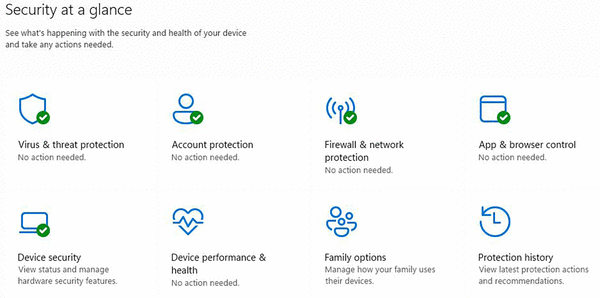
On Windows 11, the list is in Settings>Security and Privacy>Windows Security>Firewall & Network Protection.
On MacOS go to System Settings>Network>Firewall>Options.
Both of those places will let you add specific apps through the firewall.
©2026 Tribune Content Agency, LLC.






Comments